
I-765 STEM Extension Online Filing Guide
Before you get started
This I-765 filing guide should only be used for 24-Month STEM OPT applications filed online, not any other type of USCIS application.
- Reference our guidance for lost or stolen EAD cards
- If you’re replacing an incorrect EAD card, please contact an ISO advisor
This information should not be considered legal advice. You are responsible for accurately completing your forms and timely submitting your application.
Logging in and process overview
Step 1: Create a USCIS online account or sign into an already existing account on the USCIS website. Reference details on how to create an account, if needed.
Step 2: Select “File a Form Online”, and select “Application for Employment Authorization (I-765)
Step 3: Complete all sections of the I-765 online (as outlined below). You can save a draft of your application and finish at your own pace.
Step 4: Monitor your case status and respond to any requests for evidence.
Review the detailed guide below for step-by-step guidance. For additional support, you can also reference USCIS’ Tips for Filing Forms Online.
Getting Started section
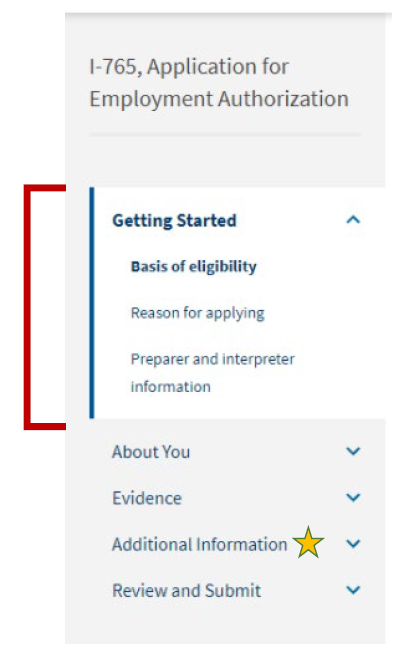 Basis of eligibility
- What is your eligibility category?: Select “STEM Extension, (c)(3)(C)”
- What is your degree?: Write your academic level and the CIP code found on your I-20. You can list your full degree information in the Additional Information section.
- What is your employer’s name as listed in E-Verify?: Write your employer’s name exactly as listed in E-Verify.
- What is your employer’s E-Verify company identification number or a valid E-Verify client company identification number?: Fill in your employer’s E-Verify Number (not EIN). This should be a number between 4-7 digits long.
Reason for applying
- What is your reason for applying?: Select “Initial permission to accept employment”
- Have you previously filed Form I-765?: Select “Yes”
Preparer and interpreter information
- Is someone assisting you with completing this application?: Select “No”
About You section
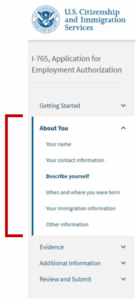 Your Name
- What is your current legal name?: Enter your full name as it appears on your passport.
- If your full name does not fit in the spaces provided, use the Additional Information section to list your full name.
- Have you used any other names since birth?: You can use this section if you have ever changed your name OR if your name appears differently on different legal documents.
- If this section does not apply to you, select “No”.
Your contact information
- How may we contact you?:
- Daytime telephone number
- Email address
- Do not use a “u.rochester.edu” email address; it is invalid in the online form
- What is your current U.S. mailing address?
- The address you enter here is where your EAD card and other notices from USCIS will be mailed. This should be an address where you can securely receive mail for the next 6 months.
- Is your current mailing address the same as your physical address?:
- If the mailing address you are using is different from where you live, select “No”. You will be prompted to list your current residential address
- If the mailing address you are using is the same as your physical address, select “Yes”.
- Physical Address:
- Enter your current U.S. residential address. USCIS may use this address to determine the local Application Support Center (ASC) where you would report if biometrics are required. If you move while your application is pending, you must update your address with USCIS by submitting the AR-11, Alien’s Change of Address.
Describe yourself
- What is your gender?: Mark the box that best describes you.
- What is your marital status?: Mark the box that best describes you.
When and where you were born
- What is your city/town/village, state/province, and country of birth?
- What is your date of birth?: Enter your date of birth in MONTH/DAY/YEAR format.
Your immigration information
- What is your country of citizenship or nationality?: If you are a citizen or national of more than one country, select “+Add Country” to add all the countries where you hold citizenship.
- What is your Form I-94 Arrival-Departure Record Number?: You can find this on your I-94 record, when you select “Get Most Recent I-94”
- When did you last arrive in the United States?:
- Date of arrival: You can find this on your I-94 record
- Place of arrival (Port of Entry): Click on the “Travel History” button on your I-94 record to access this information
- Status at last arrival: Select “F-1 Student”
- What is the passport number of your most recently issued passport?
- What is your travel document number (if any)?: You can leave this blank unless you have a travel document other than a passport.
- What is the expiration date of your passport or travel document?
- What country issued your passport or travel document?
- What is your current immigration status or category?: Select “F-1 Student”
- What is your Student and Exchange Visitor Information System (SEVIS) Number?: You can find your SEVIS ID number on your I-20.
Other information
- What is your A-number?: You can enter the 9-digit “USCIS#” on your current EAD card as your “A-number”
- What is your USCIS Online Account Number?: Select “I do not have or know my USCIS Online Account Number” if applicable
- Provide your Social Security Number (if known)
- Being approved for OPT makes you eligible for a Social Security Number, once you have your EAD card
Evidence section
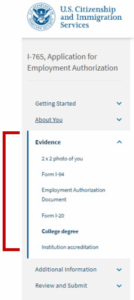 Before getting started with this section, here’s some tips for uploading evidence:
- Make sure each image is clear and that all text is readable.
- You can upload multiple files in each section, if needed.
- Files must not be larger than 6MB.
- Files must be in PDF, JPG, or JPEG format. For some forms, USCIS also accepts files in TIF or TIFF format.
- Do not encrypt or password protect your files.
2×2 photo of you
Upload a passport photo that meets USCIS specifications. Local convenience stores (such as CVS) may provide digital passport photos. Use the photo tool to upload your photo and ensure it meets the photo requirements.
Form I-94
Upload a copy of your I-94 record. You can look up your most recent I-94 online.
Employment Authorization Document (EAD)
Upload a copy of your Passport ID page and upload a front-and-back copy of any previous/current EADs. All students applying for the STEM OPT extension have a current EAD, and may have previous EADs.
Form I-20
Upload a copy of your STEM Recommendation I-20 (after you have printed and signed/dated the I-20 in blue ink).
College degree
ISO recommends including both a copy of your diploma (required) and transcript (optional). The proof of your degree must include the degree name and date awared.
Institution accreditation
If applying for the STEM Extension based on a previously earned STEM degree (not connected to your current OPT), you should provide evidence that the degree is currently accredited by the US Department of Education and certified by SEVP.
- If the previously-earned degree is from the University of Rochester, you can find the statement of accreditation status on the Office of the Provost’s website.
- If the previously earned degree is from a different university, please contact your previous university directly.
Additional Information section
 This section is as applicable to your situation. Use this section if:
- You need to list your complete degree information from the Getting Started section
- Write out the full level, name, and CIP code of your degree as listed on your I-20.
- Example: Complete degree information: Bachelor’s in Econometrics and Quantitative Economics 45.0603
- Your full name could not fit in the About You section
- Example: Complete Legal name: Last name: [ ], First name: [ ], Middle name: [ ]
- Your I-94 record does not list your most recent entry.
- Example explanation: Public I-94 record system was not updated after most recent travel to Canada. The I-94 record uploaded in the “Evidence” section does not reflect my most recent entry to the United States referenced in the “About You-Your Immigration Information” section.
- You’ve had any previous SEVIS ID numbers:
- Section: About You; Page: Your Immigration Information
- Additional Information: List your previous SEVIS ID number and the degree level (High School, Bachelor’s, Master’s, etc.) associated with that SEVIS ID
Review and Submit section
- Review your application: ISO recommends that you review your application before submitting to USCIS.
- Read and agree to the “Applicant’s Statement”
- Digitally sign
- Pay the application fee: The system will direct you to Pay.gov, a US government payment site, to pay the required I-765 application fee. You will be able to pay using a US cred / debit card or through an ACH transfer (direct withdrawal) from your US checking account.
- Submit your application: After submission, you will automatically be assigned a USCIS receipt number. You can print out an electronic receipt from your myUSCIS account portal. A paper receipt notice will follow in the mail a few weeks later.
Important: Once you submit your payment information and the payment is successfully received, USCIS considers your application officially submitted. You cannot change or edit your I-765 application responses after payment has been submitted.