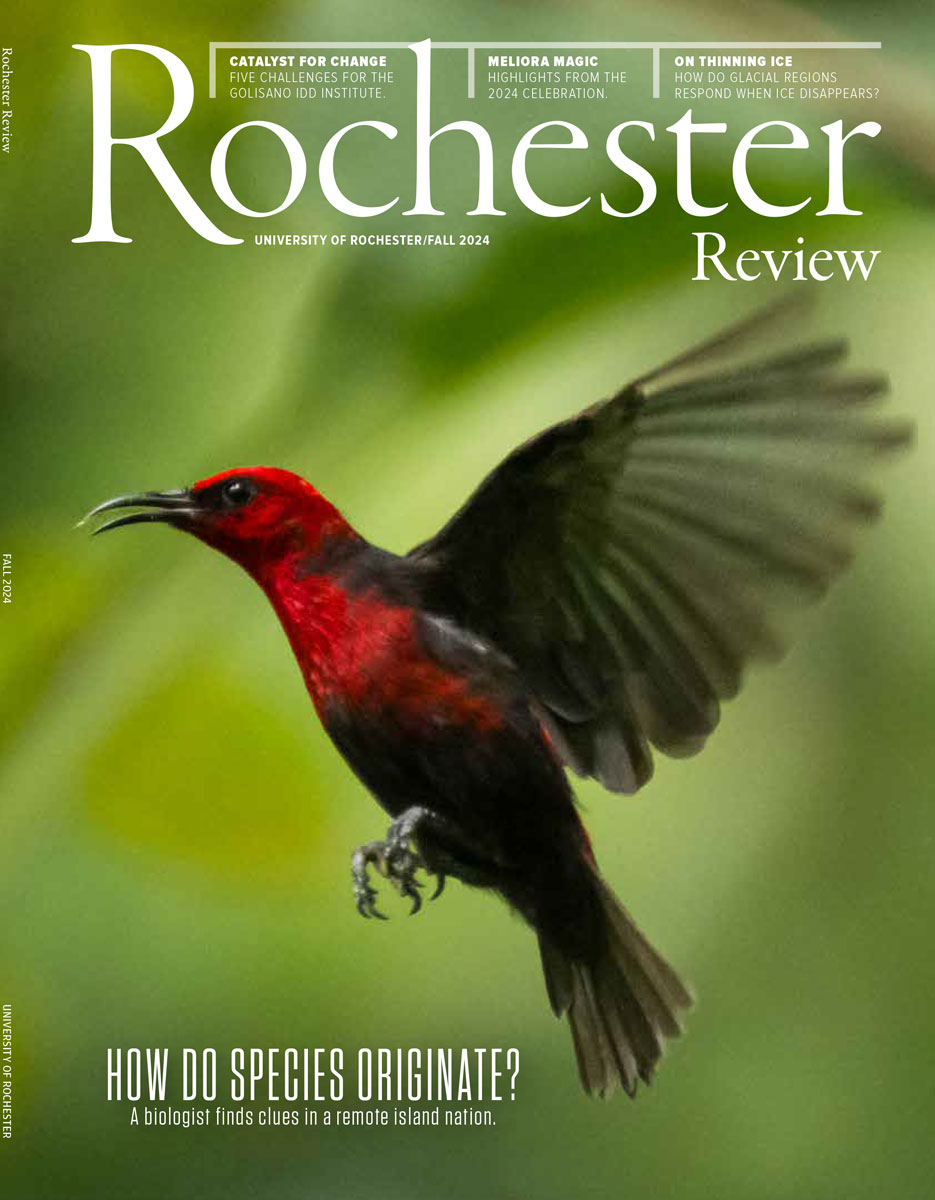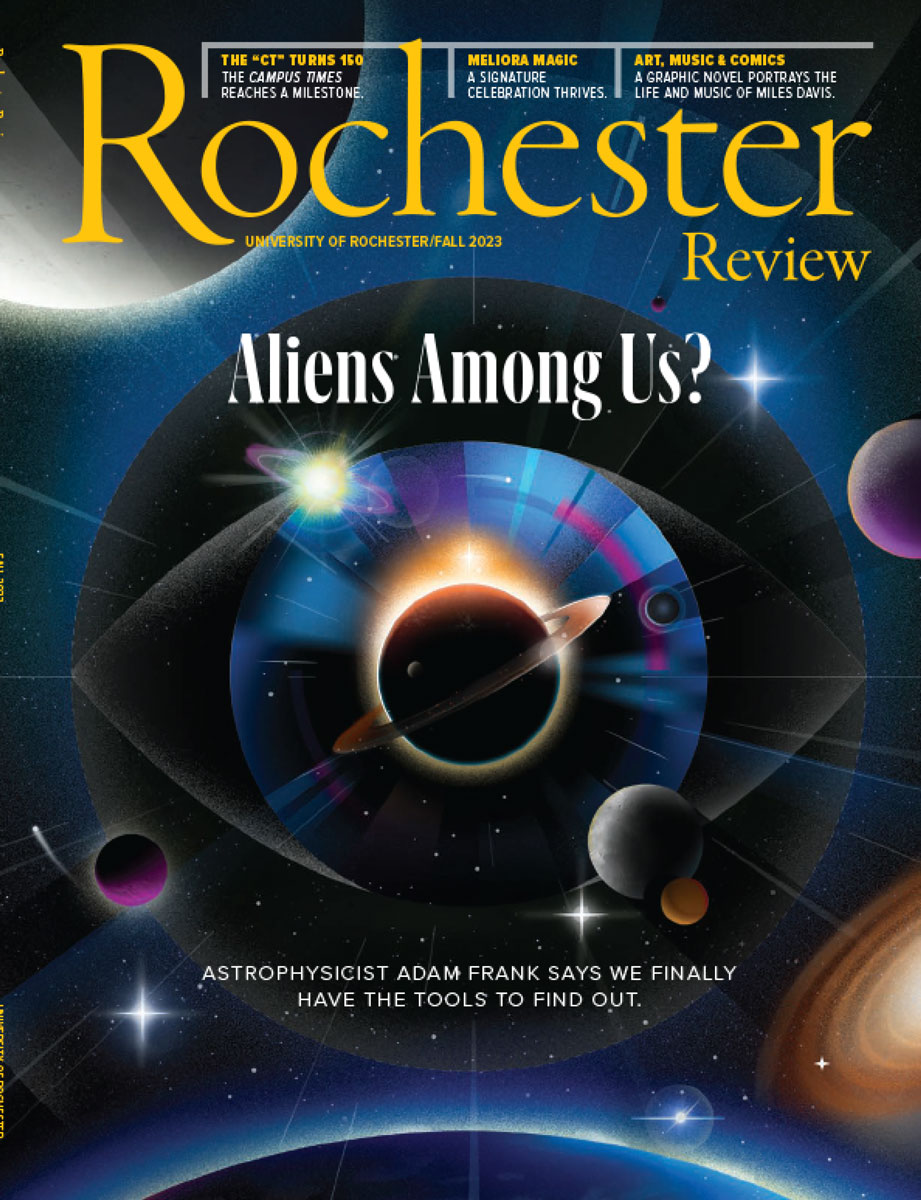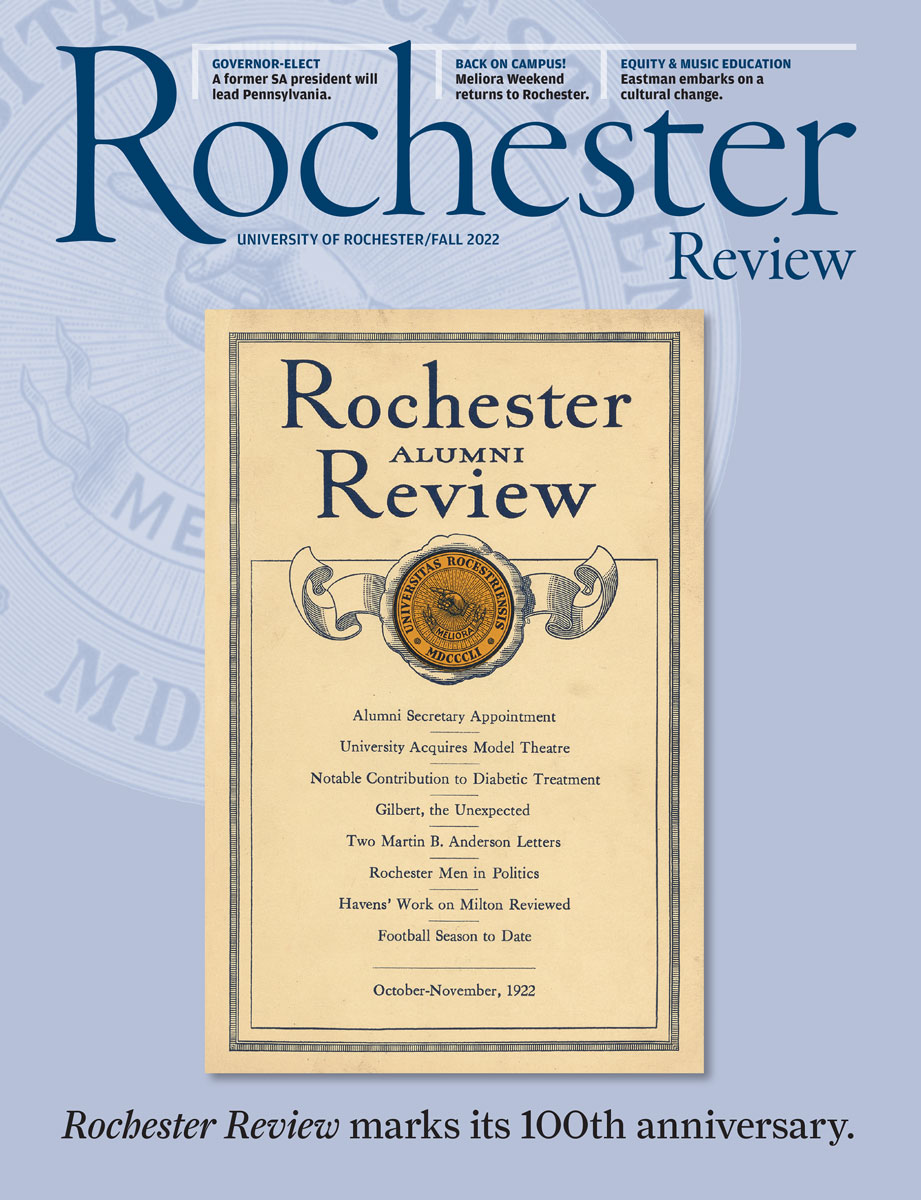








| 2011–12 | |||||
![]() Vol. 74, No. 1 September-October 2011 iPad/iPhone Kindle Nook |
![]() Vol. 74, No. 2 November-December 2011 iPad/iPhone Kindle Nook |
![]() Vol. 74, No. 3 January-February 2012 iPad/iPhone Kindle Nook |
![]() Vol. 74, No. 4 March-April 2012 iPad/iPhone Kindle Nook |
![]() Vol. 74, No. 5 May-June 2012 iPad/iPhone Kindle Nook |
|
| 2010–11 | |||||
![]() Vol. 73, No. 1 September-October 2010 iPad/iPhone Kindle Nook |
![]() Vol. 73, No. 2 November-December 2010 iPad/iPhone Kindle Nook |
![]() Vol. 73, No. 3 January-February 2011 iPad/iPhone Kindle Nook |
![]() Vol. 73, No. 4 March-April 2011 iPad/iPhone Kindle Nook |
![]() Vol. 73, No. 5 May-June 2011 iPad/iPhone Kindle Nook |
![]() Vol. 73, No. 6 July-August 2011 iPad/iPhone Kindle Nook |
| 2009–10 | |||||
![]() Vol. 72, No. 4 March-April 2010 iPad/iPhone Kindle Nook |
![]() Vol. 72, No. 5 May-June 2010 iPad/iPhone Kindle Nook |
![]() Vol. 72, No. 6 July-August 2010 iPad/iPhone Kindle Nook | |||
The electronic versions of Review are available only as downloads from this site. Here’s how to get them onto your device:
1) Download the iPad version of the file;
2) Import the file into iTunes, where the file should show up as a “Book” in the iTunes Library;
3) Sync your iPad/iPhone;
4) Rochester Review should now appear in the iBooks app, listed as part of your library.
1) Download the Kindle version of the file;
2) Connect your Kindle to your computer using the Kindle’s USB cable:
3) Drag the file for Review into the “Library” folder on your Kindle;
4) Rochester Review should now appear as an option in your Kindle’s Home screen.
1) Download the Nook version of the file;
2) Connect your Nook to your computer using the Nook’s USB cable:
3) Drag the file for Review into the “My Documents” folder on your Nook;
4) Rochester Review should now appear as an option in the “My Documents” folder of your Nook’s “My Library” screen.
The iPad, Nook, Sony E-Reader, and several other devices recognize the same file format, but they each use slightly different methods for moving files from your computer to the reading device.
When you download the files, make sure that the extension for the file name is either .epub (for the iPad, Nook, Sony E-Reader, etc.) or .mobi (for the Kindle). Some browsers, particularly Safari, may try to save the files with the .txt extension.
After you have saved the files to your reader, some devices—for example, the Nook—may require you to “check for new content” before the new files will appear in your reading list.
Maintained by University Communications.
Please send your comments and suggestions to Rochester Review.