
Rochester Core
Post Listing
Explore documentation around Rochester Core’s Post Listing component.
1. Post Listing options
To set up a Post Listing page the first step is create a new page. Navigate to Pages > Add Page.
This page should contain the desired title of the Post Listing page and nothing else.
To make a page into a Post Listing page, navigate to Settings > Reading.
Under “Your homepage displays” there is a setting called “Posts page.” In the dropdown, select the desired page to turn into a Post Listing page.
To decide which filtering options will be available to the user, navigate to Settings > Site Settings and scroll down to Post Listing template. From here, choose “Show categories” or “Show tags” or check both boxes for both.
Returning to the created page will now list all of the posts on the site. The displayed posts can be sorted based on what filters are selected.
2. Example Post Listing
Here is an example screenshot of a Post Listing page:
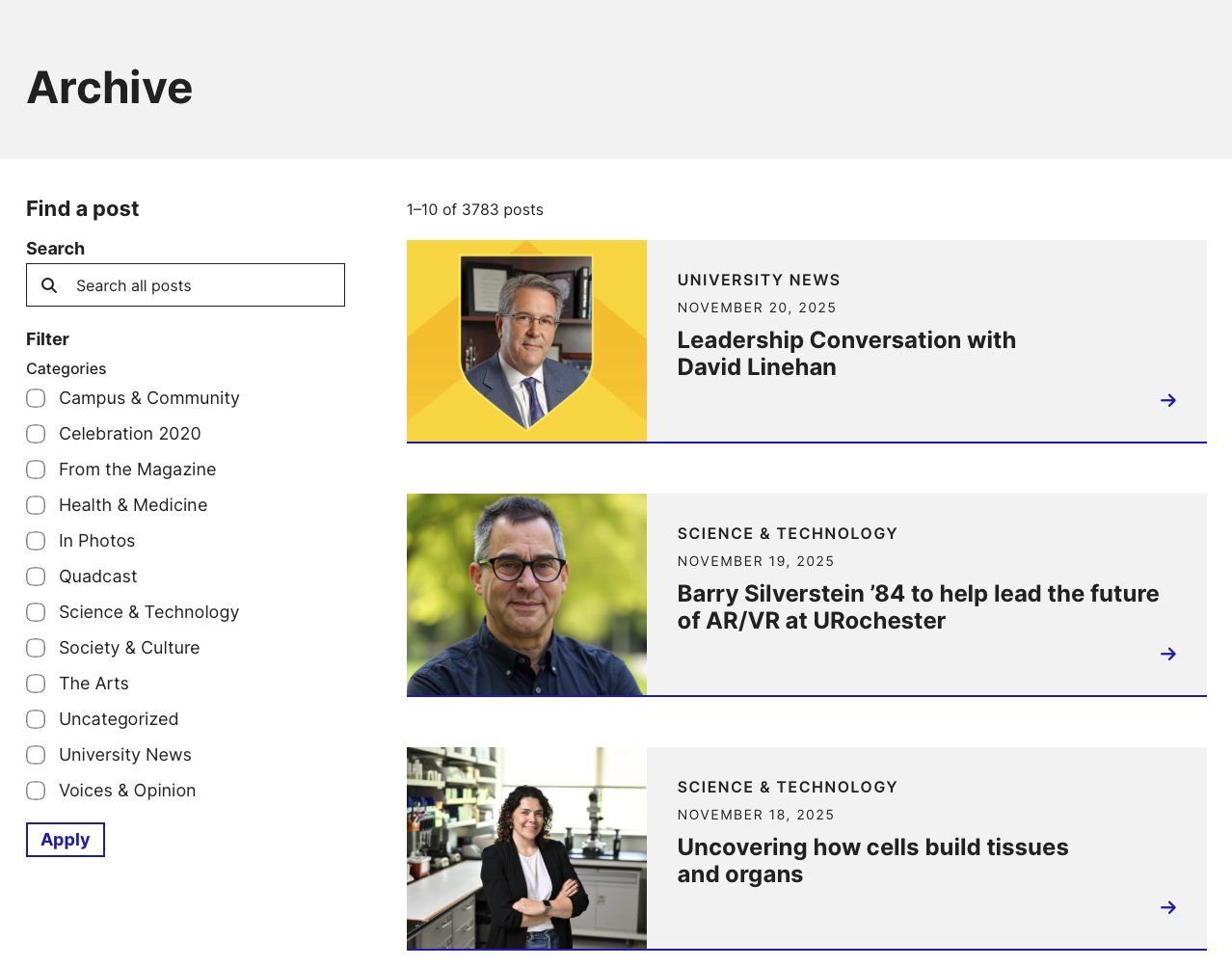
For a hands on demonstration visit the News Center Archive page.